Creating forms
On this page (41)
- Question types
- Single choice
- Multiple choice
- Text field
- Text field -- multi line
- Date
- Time
- Number field
- Number field -- slider
- Table
- File upload
- Computed field
- Catalog search
- Nested form
- Image map
- Signature
- Identity
- Structural/layout elements
- Headline
- Info text / image
- Item numbering
- Edit a question
- Reordering questions
- Deleting questions
- Copy & paste of questions and forms
- Using HTML tags
- Form Preview
- Multi-language studies
- Structure
- Input validation
- Mandatory questions
- Standard rules
- Custom rules
- Question Visibility
- Codebook
- Rules for variable names
- Variable coding
- Variables in tables
- Advanced
- Audit
- Computed fields
The CRF for your study consists of individual forms which are later used in the visits of your study. We recommend keeping your forms focussed on specific topics so that they are easy to use in different visits or even other studies in the future.
To create a new form, go to Setup → forms and then click new to add a new form. Enter a name for the form, description and version number are optional. Click save. You will automatically enter the form editor.
All building blocks of your form are available from the toolbox on the left side of the screen. To add an element, drag if from the toolbox and drop it onto the grey workspace next to it. To edit the question, click on Options.
Question types
The form designer offers a wide choice of different question types. The most common types are found in the Data entry section of the toolbox, specialized types are found in Special.
Single choice
Single-choice questions provide several possible choices only one of which can be selected at a time. By default, they are shown as a list of checkboxes:
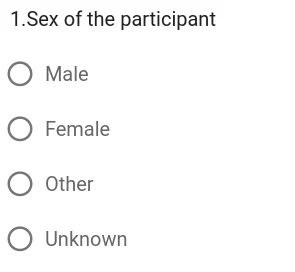
However, their appearance can be changed to a drop-down list (Advanced > display as dropdown):
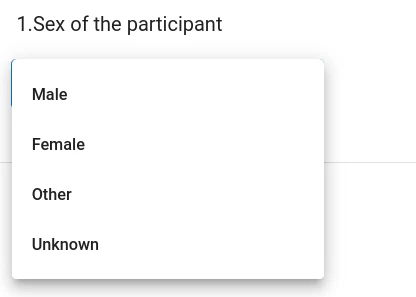
You can also change the question-type from single-choice to multiple choice and back in the form editor.
Multiple choice
Multiple choice questions are similar to single-choice questions, but allow checking as many options as desired:
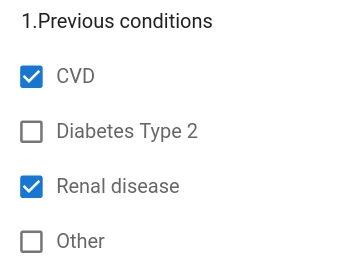
Like single-choice questions, you can choose to represent them as drop-down menus.
Text field
Text field questions allow entering arbitrary input in a single line of text. While you can set the width of the input field, it will accept more input than the field width can show at a time. The size of the field serves as a visual hint that brief input is expected.
Typical use: short free text answers. E.g. a medical condition, or drugs previously taken.
Text field -- multi line
Like the normal text field, a multi-line text field will accept arbitrary amounts of free text input. In contrast to the normal text field, the input field consists of multiple rows and can be re-sized by the user. The size of the field serves as a visual hint that verbose input is expected.
Typical use: Open feedback and similar questions.
Date
The date field expects a well formatted date as its input. Users can either type a valid date into the field or use the graphical input widget to select a date. The input field contains a format hint and will reject ill-formatted input.
Partial dates are not accepted. If you expect that incomplete dates (month and year or only year) will be entered, you can choose one of the following approaches:
- train your site users to set the unknown part of the date to a specific
number – e.g.
2024-08-01if the day of the month is unknown and2024-01-01if only the year is known. - Use separate number fields for year, month and day.
Time
The time field accepts valid time values. Users can either type in
the time in the format HH:MM or select a time using the graphical widget that
opens when clicking the clock icon.
Number field
As the name suggests, this field type is for numeric input. You can configure the desired number of decimals as well as the visual width of the field and set minimum and maximum allowed input.
Number field -- slider
Another incarnation of a numeric field. Instead of typing in a number, you an set a slider visually to indicate a numeric value. This is typically used when the participant is asked to rate something. Also known as a visual analog scale.
Table
Tables allow for compact combinations of checkboxes, numeric fields, text fields etc.
Tables can be useful for groups of closely related items. However, tables were most useful in times when data was collected on paper. In a paper-CRF setting they were compact and quick to fill in.
In an electronic setting they loose some of their appeal as screen space is free and you don't have to worry about the number of pages your CRF will end up having. Still, tables can be useful for some settings. But keep in mind, that tables can become a real hassle on very narrow screens – e.g. on smartphones. So consider who will fill in the form and what kind of device the may be using.
File upload
The file upload field is different from other question types as you cannot type in any data. Instead, it allows uploading a file into the system. Typically, these are images or PDF documents. The system will check the extension of the file and only allow a set of known file types in order to block uploads of e.g. executable files that may pose a security risk to you. Some file types allow previewing the file in the web interface.
Study admins can manage the list of allowed file extensions for their own
studies under Setup > General > Files. Please enter the allowed extensions,
one per row. Do not include the dot (.). The list is pre-filled with a list
of popular file types. Study admins can add to the list and remove entries at
will.
Caution: Make sure the site users are aware that files uploaded into the eCRF system must not contain identifying information such as names or birth dates. If such data is present in a file it must be anonymized before upload to comply with data protection regulations.
Computed field
Computed fields are very powerful tools. You can carry out calculations in them but also implement little programs for task like computing medical scores, checking inclusion criteria, display data collected from across other forms and visits etc. For a detailed description refer to section MaganaScript.
Catalog search
The catalog question is similar to single-choice and multiple-choice questions, but it is intended for handling large numbers of options to choose from, where checkboxes and normal drop-down menus are impractical. Common use cases are choices from catalogs such as ICD-10 or similar.
Setting up a catalog question follows these steps:
- Add the question to the work area.
- Fill in the text and info fields as needed.
- Add a catalog file (unless it is already available).
- Click Manage Catalogs.
- Enter a name for the catalog you are adding.
- Upload a csv file that contains the catalog (see below for format).
- Select the catalog from the Catalog drop-down menu.
As catalogs can be of substantial size, you can reuse them in multiple different locations without needing a separate copy for each question. Once set up, you will see a preview of the first couple of entries of the catalog.
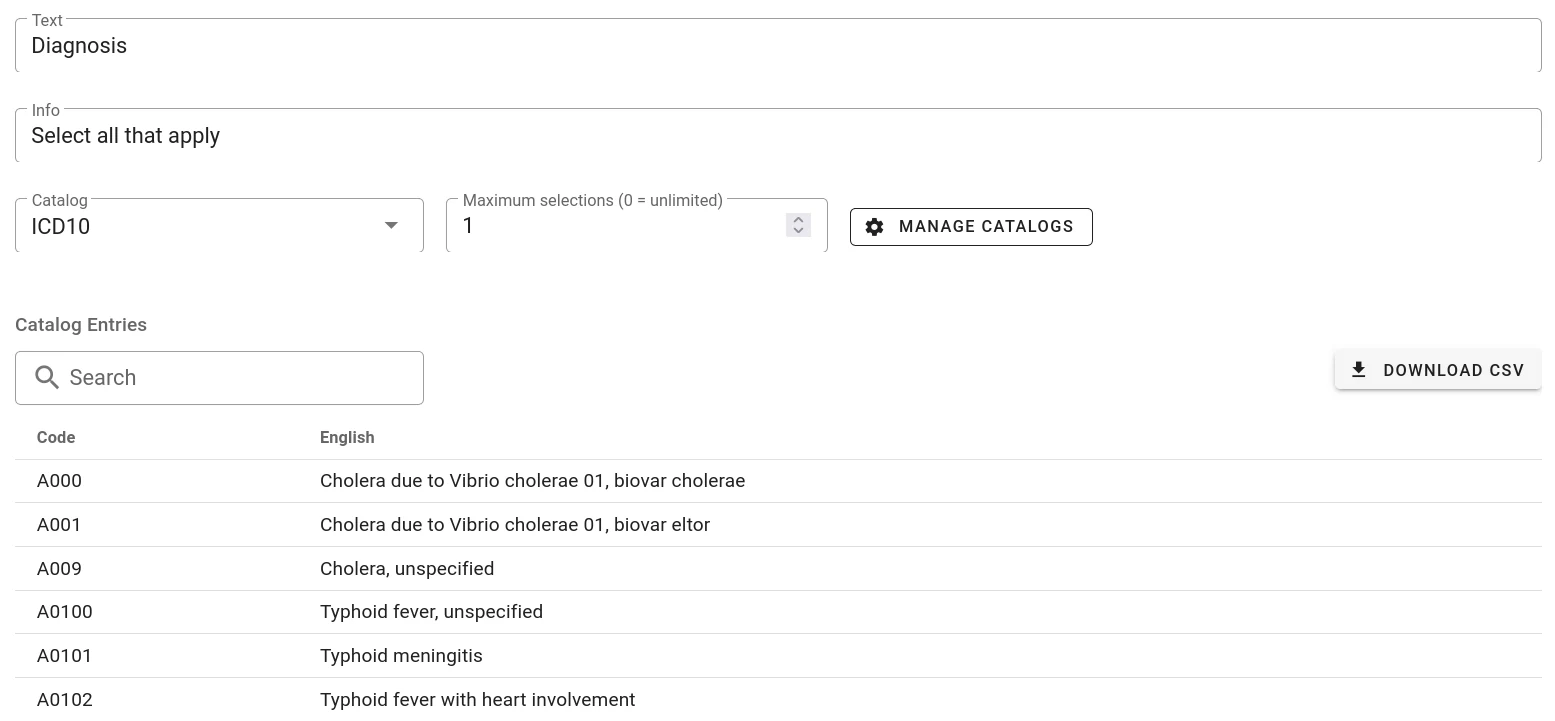
If you want the question to behave like a single-choice question, i.e. only allow one option to be selected, set the Maximum selections field to 1. For multiple-choice behaviour set it to 0 or the maximum number of selections you want to allow.
Catalog files must be uploaded in CSV format using a semicolon (;) as a
delimiter. At least two columns are required: code and the primary language,
typically English. If you want translations for any additional languages in
your study, you need to supply additional columns. The first row of the file
is the header that contains the column names. E.g.:
    code;English
    A000;Cholera due to Vibrio cholerae 01, biovar cholerae
    A001;Cholera due to Vibrio cholerae 01, biovar eltor
    A009;Cholera, unspecified
    A0100;Typhoid fever, unspecified
    A0101;Typhoid meningitis
    A0102;Typhoid fever with heart involvement
    A0103;Typhoid pneumonia
    A0104;Typhoid arthritis
    A0105;Typhoid osteomyelitis
    [...]
Or in case of German as the primary language using a different coding scheme:
    code;German
    "90016";"A00.0 Cholera durch Vibrio cholerae O:1, Biovar cholerae"
    "90017";"A00.1 Cholera durch Vibrio cholerae O:1, Biovar eltor"
    "13614";"A00.9 Cholera"
    "66377";"A01.0 Abdomentyphus"
    "117530";"A01.0 Abdominaltyphus"
    "22465";"A01.0 Bauchtyphus"
The code column must be unique and will be used for variable coding in the data export, the language columns contain the searchable clear text that will be shown in the selection.
If you do not supply a column for a language, the system shows the text of the primary language, instead.
Usage
Upon clicking into the data entry field, a list showing the first options opens. As soon as you start typing, the choice shown will be limited to entries that match the string entered. Click on an option to select it.
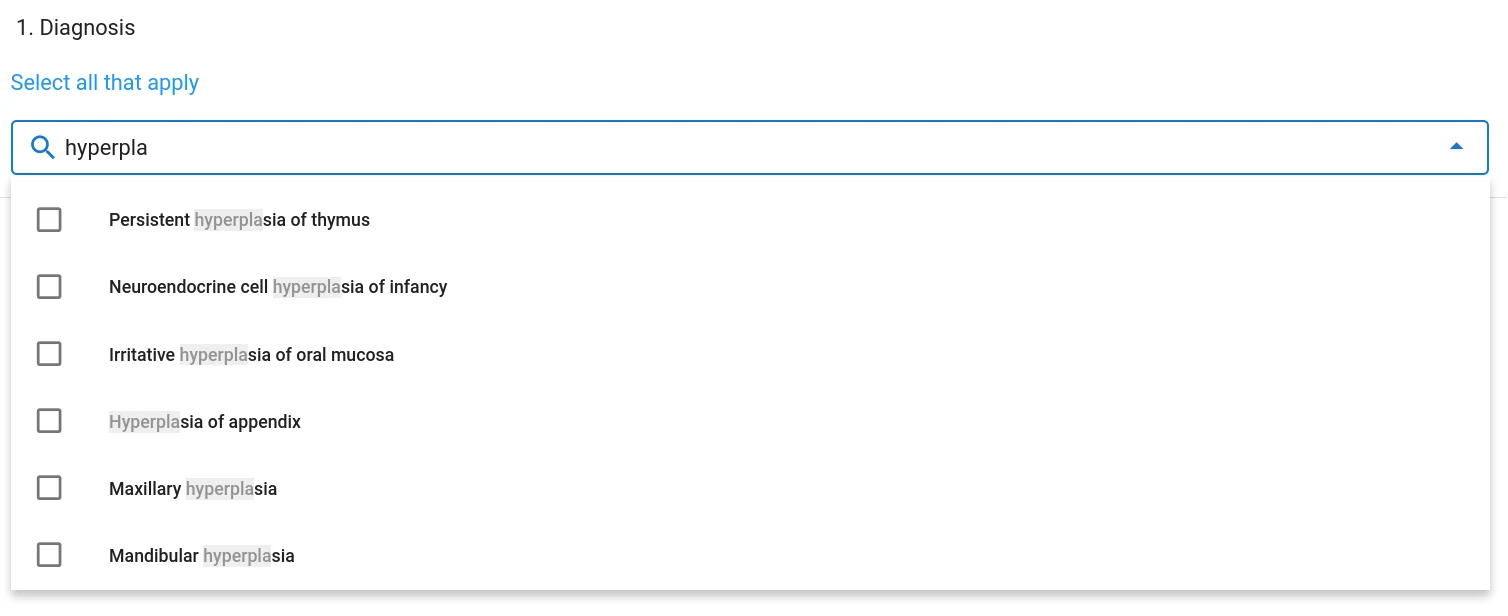
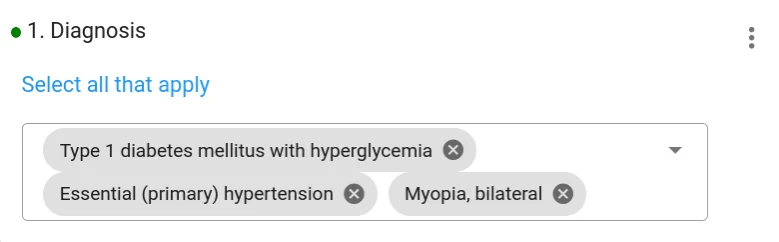
If setup to accept more than one selection, you can add multiple selections:
Nested form
A Nested form allows you to call another form from within your current form. The use case for a nested form is when you want to potentially get multiple data sets for an entity. E.g. medication. In that case, create a brief Medication form that contains all information on one medication. Then create a nested form in an appropriate place. Site users can now add as many medication items as needed inside an existing form.
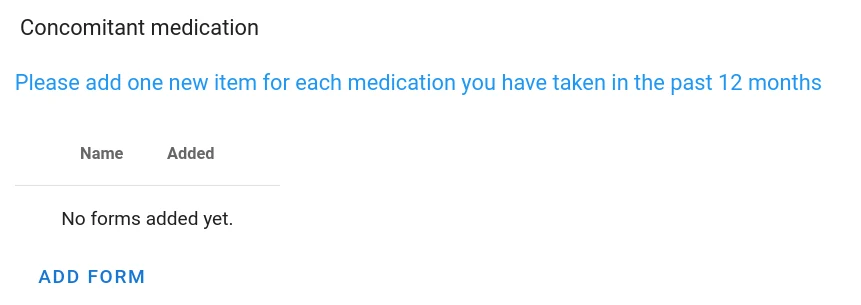
And after adding a few items:
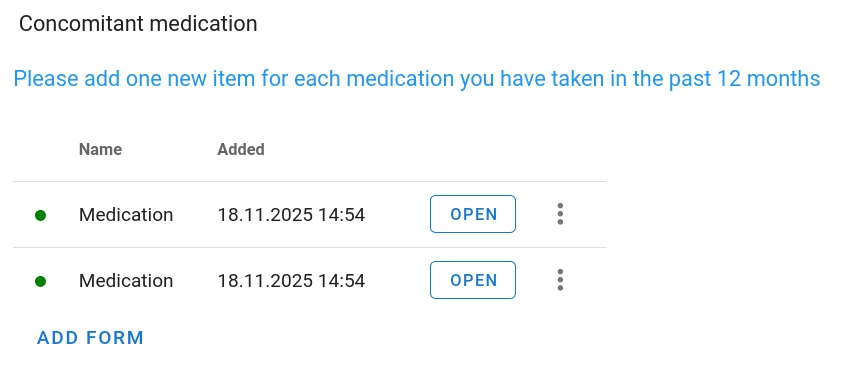
The workflow is in analogy to having addable forms in a visit.
Image map
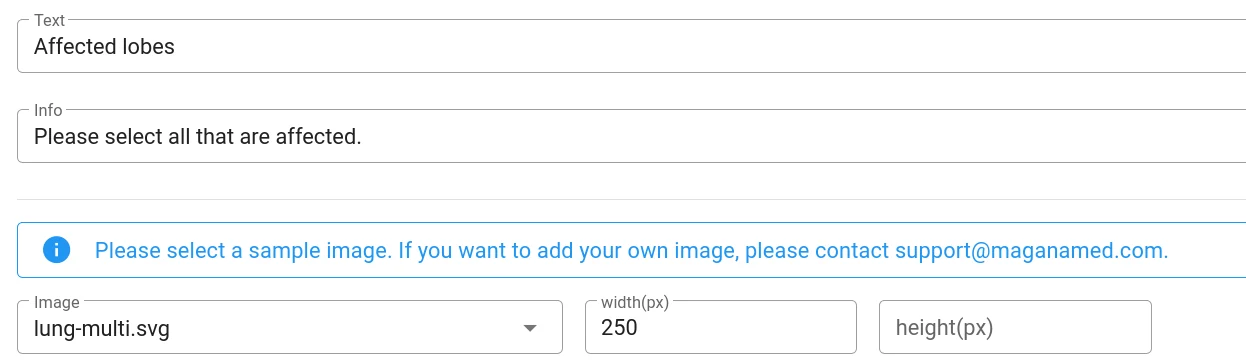
This field type supports interactive images with defined active areas (eg. parts of the body, states in a country, etc.). The participant can click and select one (single choice) or more (multiple choice) areas of an svg-image.
Importable images require some manual setup. The resulting files are in SVG format and contain the image, a path definition of active (selectable areas) and matching labels that are imported into the codebook. In order to use your own images with this question type, please get in touch with MaganaMed support.
Once you have such a prepared image, you can setup the question as follows:
- Upload your prepared image to the general file area (Extras > Files > Upload)
- Place an image map question on the work area of the form designer
- Open the question and fill in text and info fields
- Select your image from the Image menu.
- Enter the desired image width and/or height. Providing only one of these sizes will preserve the aspect ratio of the original image.
The system will automatically extract the variable name and coding from the SVG
file and fill in the codebook. For your convenience, the system provides two
example images (lung-single.svg and lung.multi.svg) that represent an image
map of pulmonary lobes.
Example
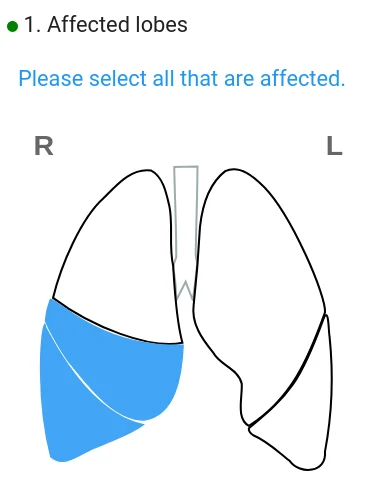
Depending on the setup of your image, it will behave like a single-choice or multiple-choice question. This is what it looks like after selecting two lobes in the right lung:
Signature
The Signature question type is available, if the Participant Identity module is active. It is primarily intended for use in eConsent visits (requires the eConsent module). The question type allows collecting a participant signature drawn on the screen – using a stylus or finger on touchscreens or with a mouse or touchpad on a computer.
While FDA has issued a clear statement that such "tablet signatures" are acceptable, the situation in Europe is currently inconsistent and partially unclear, so make sure to consult with your regulatory experts to find out if this is suitable fr your project and country.
Identity
When the Participant Identity module is active, identifying information such as Name or phone number can be entered directly by the participant using this question type. This is intended for studies that use survey visits during participant onboarding – either remotely or by handing out a digital device to participants on their initial visit at the site.
You can configure which fields of the identity data will be shown in the respective question.
Structural/layout elements
Headline
You can add as many headings and sub-headings into your form as you like. That way, users get more guidance on what a form or section is really about. However, if you find yourself adding lots of headlines to a form, it may be time to split a very long form into two (or more) for better modularity.
Info text / image
The info text element can be used to add any free text to your form. That could be a warm welcome to the site personnel, instructions how to fill in a form or just about any additional information that is not immediately linked to a single question.
In addition, you can use this field to add images to your form – e.g. a sponsor logo, a study logo or any kind of supplementary images that make your form easier to use.
Item numbering
By default, all questions are numbered sequentially. You can turn off automatic numbering by setting the numbering option in the form's context menu to none.
Edit a question
To edit a question, click on Open in that question.
Typically, a question has a question text, and some optional information (info). Many question types also have a label field for a short description of the value expected.
Reordering questions
To change the order of questions in a form, grab a question by the handle field on the right hand side of the respective question and drag it to the desired location.
Deleting questions
To delete a question, click on the bin symbol on the right side of the respective question.
Copy & paste of questions and forms
You can copy/cut & paste several questions at a time within the same form or even transfer it to another study. To copy or cut one or several questions:
- activate the "copy/paste" function by clicking copy&paste in the title bar.
- Choose either Copy or Cut depending on what you intend.
- Select any number of questions by clicking on them.
- For pasting, go to the position in the form you want the selection to be inserted at and click the paste button in that position. The pasting position doesn't need to be in the same form or even the same study.
Using HTML tags
In the Text and Info fields of a question, you can use basic html tags for formatting. The same is possible in the response of computed fields.
-
Bold text
<b>bold text</b> -
Italics
<i>text in italics</i> -
Colored text
<span style="color:red">red text</span> -
superscript (x^2^)
x<sup>2</sup> -
subscipt
x<sub>i</sub> -
Link to external resource
<a href="https://foobar.de/foo-score.html">Foo-Score</a> -
Embedding an image
<img src="https://foobar.de/images/nice-picture.jpg">
Images can be stored in the file area of the software and then liked to like this. -
Bullet list
<ul> <li> First </li> <li> Second </li> <li> Third </li> </ul> -
Numbered list
<ol> <li> First </li> <li> Second </li> <li> Third </li> </ol> -
Tables
    <table>
        <tr>
            <td>Item</td>
            <td>Description</td>
        </tr>
        <tr>
            <td>Foo</td>
            <td>A foo item</td>
        </tr>
        <tr>
            <td>Bar</td>
            <td>A bar item</td>
        </tr>
    </table>
We recommend sticking to simple tags, depending on your knowledge of HTML.
However, more advanced things are possible such as embedding external media
content (videos) with iframes.
Warning: Linking to or embedding external content can cause risks! Therefore, Magana Trial Manager will only allow content from a list of trusted media sources such as Youtube and Vimeo. While this prevents the majority of risks, we strongly recommend to only embed content that is under your full control (i.e. you control the account providing the media) and/or is provided by a trusted source such as medical agencies and associations. In any case, check the content of your link or iframe before including it and re-check on a regular basis in order to detect changes to that content, even if you trust the source.
Form Preview
You can check the appearance of your forms on different devices. To select the respective preview click on "view type" at the right side of the title bar. You have following options of preview:
- smartphone
- tablet
- laptop
- PDF (annotated PDF)
After adding/editing/deleting a question, please click reload to refresh the preview.
To enable/disable the preview, click "View type".
The annotated PDF will contain all questions plus optionally input validations, visibility rules, aliases and encodings. To download the form as pdf file, click the download button in the preview window.
Multi-language studies
Once your CRF is completed in your primary language, you can translate your forms into additional languages. See section Managing languages for details.
Structure
In the Structure tab you can define the core of the question or element. This is the default tab when editing a question.
Depending on the question/element type you can set
- Text (Question text)
- Info (additional commen sor instructions)
- Label (short description of data to be entered)
- Unit
- Selectable answers (single- and multiple-choice)
- Numeric field length, decimal places and min/max values
- ...
Input validation
Input validation contains a set of functions to check entered data and configure mandatory questions.
As described below, you can define rules that will trigger warnings or error messages. If the action type is set to Error, the system will reject the input. Warning will show a message but still accept the input.
Input validation is frequently used with numeric fields to define lower and upper limits that are acceptable and/or warn about extreme values that may not be correct but can also be useful for other question types. If you want more control over the checks and/or need custom messages, you can define input validation rules instead of simple numeric limits in the Input Validation tab.
Mandatory questions
You can set a question as mandatory (required question). If this option is selected, The finish button at the end of the form will be greyed out and non-functional until all mandatory questions of the form have been answered.
When using this feature, make sure not to create lock-in situations for your users. E.g. a mandatory multiple-choice question will require at least one option to be checked, before finishing the form is possible. So, in practice, you need to include an option such as None of the above to allow finishing the form in case none of the regular options applies.
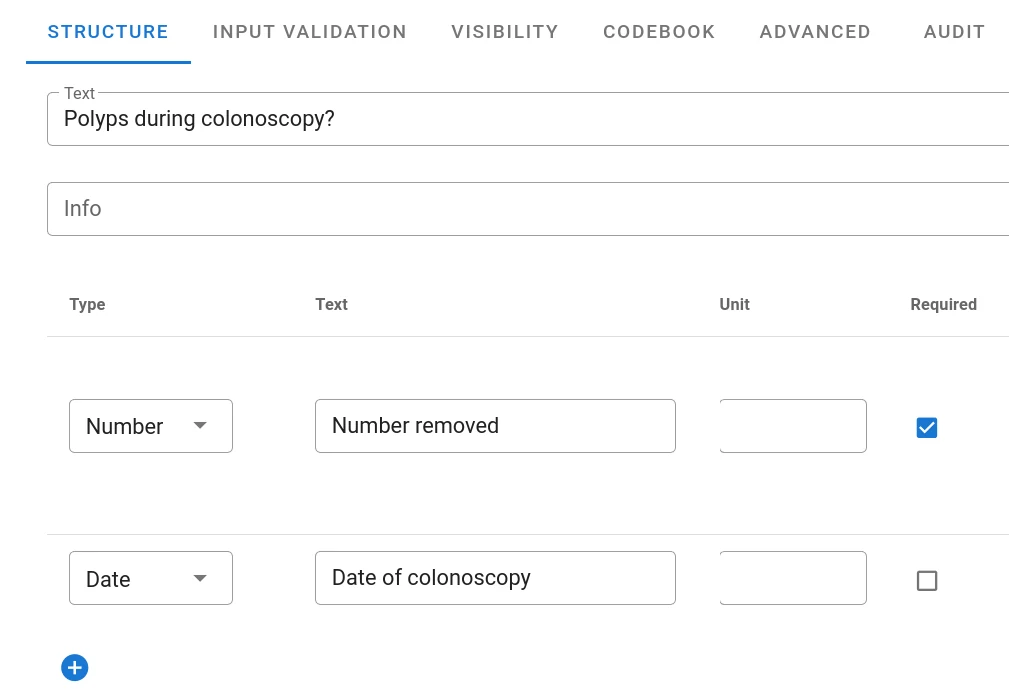
In questions with multiple sub-questions, you can configure the required state individually for each sub-question. E.g. in the following example, The first sub.question (Number) is mandatory, while the second (date) is not:
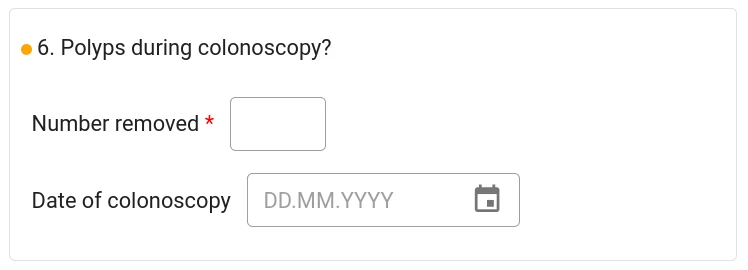
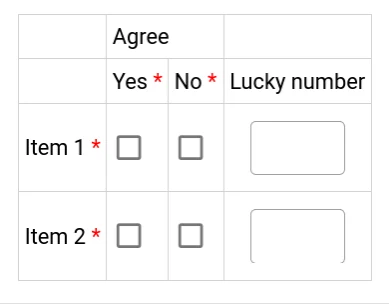
In the participant view the required elements are indicated by an asterisk:
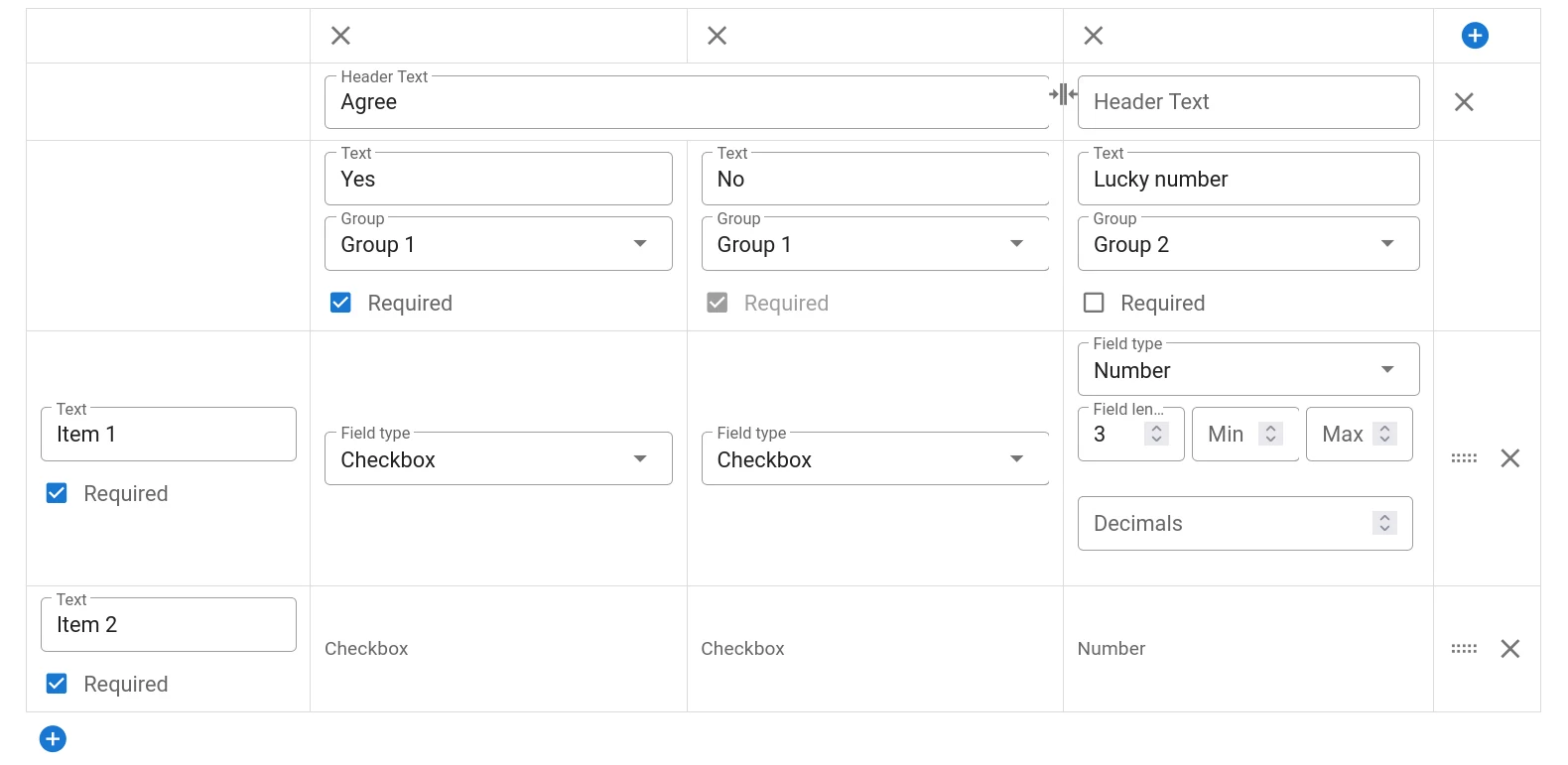
In tables, you need to set the required state for both rows and columns. Fields will become mandatory if both the column and the row has been marked mandatory. Items that belong to the same group share the state.
In the example, The Agree group is mandatory for both items while the Lucky number is not:
The required status is indicated with an asterisk, as expected:
Standard rules
Standard rules can be defined by selecting criteria from a drop-down menu and entering limit values. They are available for number questions.
You can define as many rules as you like. They will be evaluated independently and you can assign individual levels (error or warning) and messages.
Custom rules
Custom validation rules are written as MaganaScript
expressions. The validation rule triggers an error or warning if it evaluates to
true.
The underlying mechanism of custom validations is to define an Alias for all
items required in the validation rule and then writing an expression that
evaluates the items somehow. If the rule evaluates to True, the rule is
triggered – i.e. the message will be shown. This allows for rules to not only
use the current data, but to also make us of data from to other questions,
forms or visits in the comparison. For the sake of simplicity, we will assume,
that the alias for this data point has been assigned an alias called $this.
String input validation
Text fields are notoriously hard to check, as users can enter anything. However, using computed expressions, you can easily evaluate the input. E.g.:
Reject if the input contains the string Dog:
regex_test($this, /.*Dog.*/)
Reject if the input does not contain the string Cat
! regex_test($this, /.*Cat.*/)
Reject if the input does not start with the string Foo
! regex_test($this, /^Foo.*/)
Numeric input validation
While standard rules are typically sufficient for numbers, there are cases, where custom rules are needed. E.g.
Reject if the input is even:
$this % 2
Reject if number can be divided by 3:
$this % 3
Reject if number is larger than it was in visit v0:
$this > $v0.this
Reject if number is larger than square root of another number field in visit v0:
$this > sqrt($v0.that)
Reject if number is one of a few specific values
$this == 12 || $this == 21 || $this == 78
Single and Multiple choice validation
Validation rules for single and multiple choice questions only make sense in very special cases, because you are in control of the allowed answers to begin with. However, it can be useful when some options become invalid in specific circumstances.
Let's assume we have the following two questions:
- Single-Choice: Sex (
$sex):- male (
0) - female (
1)
- male (
- Multiple Choice: Diagnostic procedures in the past 12 months?
- Chest X-ray (
$chest_xray) - Mammography (
$mammography) - PAP smear (
$pap) - Prostate exam (
$prostate_exam) - Spirometry (
$spiro)
- Chest X-ray (
Obviously some of the options are sex specific. So we can define the following custom validation rules:
$mammography && $sex == 0     // error: Mammography not possible for a man
$pap && $sex == 0             // error: PAP smear not possible in a male
$prostate_exam && $sex == 1   // error: Prostate exam for a woman not plausible
Date validation
As for normal computed fields, you can use our date functions to test if a date is in a certain range. E.g. to reject a visit date if it is within 90 days of another visit date.
date_diff($visit_date, $v0.visit_date, "days") < 90
Question Visibility
Here you can define conditions that mus be fulfilled in order for the question to be shown. Simple rules can be defined from the drop-down menu.
This feature can be useful in many situations – e.g.
- After a multiple choice question with an other option – just add a text question Other – please explain after the question and activate it if other is selected.
- Only show question about pregnancy f the participant is female.
- Hide questions on a certain side effect if it has actually occurred.
You can define more than one condition and select if the question should be shown as soon as one of them is met or if all of them must be fulfilled.
If you need more complex conditions, you can enable Advanced mode in which you program the condition using MaganaScript expressions.
Codebook
In this tab, you can define the variable name and coding for your question. These variable names and codings will be used in the data export files. If no variable name is defined, the export data will contain the raw question text which is suboptimal for subsequent data analysis.
Variable names must be unique across the entire study. Some variable names are used by internal system functions and thus reserved:
participant_identifiercenter_namevisit_namecreated_atstarted_atfinished_atform_indexdiary_date
Never use a reserved variable name for your data.
Rules for variable names
Valid variable names may contain letters, digits and the underscore (_).
They must start with a letter (not digit or _). Good variable names are
brief, descriptive and in English. Ideally, they follow a common naming scheme
and/or are taken from a standard list of names for common items.
Variable coding
Categorical variables that represent answers to single-choice questions require a coding scheme. I.e. a mapping from the natural language description of the respective option to a standardized value to be used when checked. Using numerical coding is very popular, but you can use text values if you prefer.
Typical coding examples for single-choice:
Question:
Do you take any medication?
- Yes
- No
Variable name: medication
Coding:
"yes" : 1
"no"  : 0
Or:
    "yes" : true
    "no"  : false
Question:
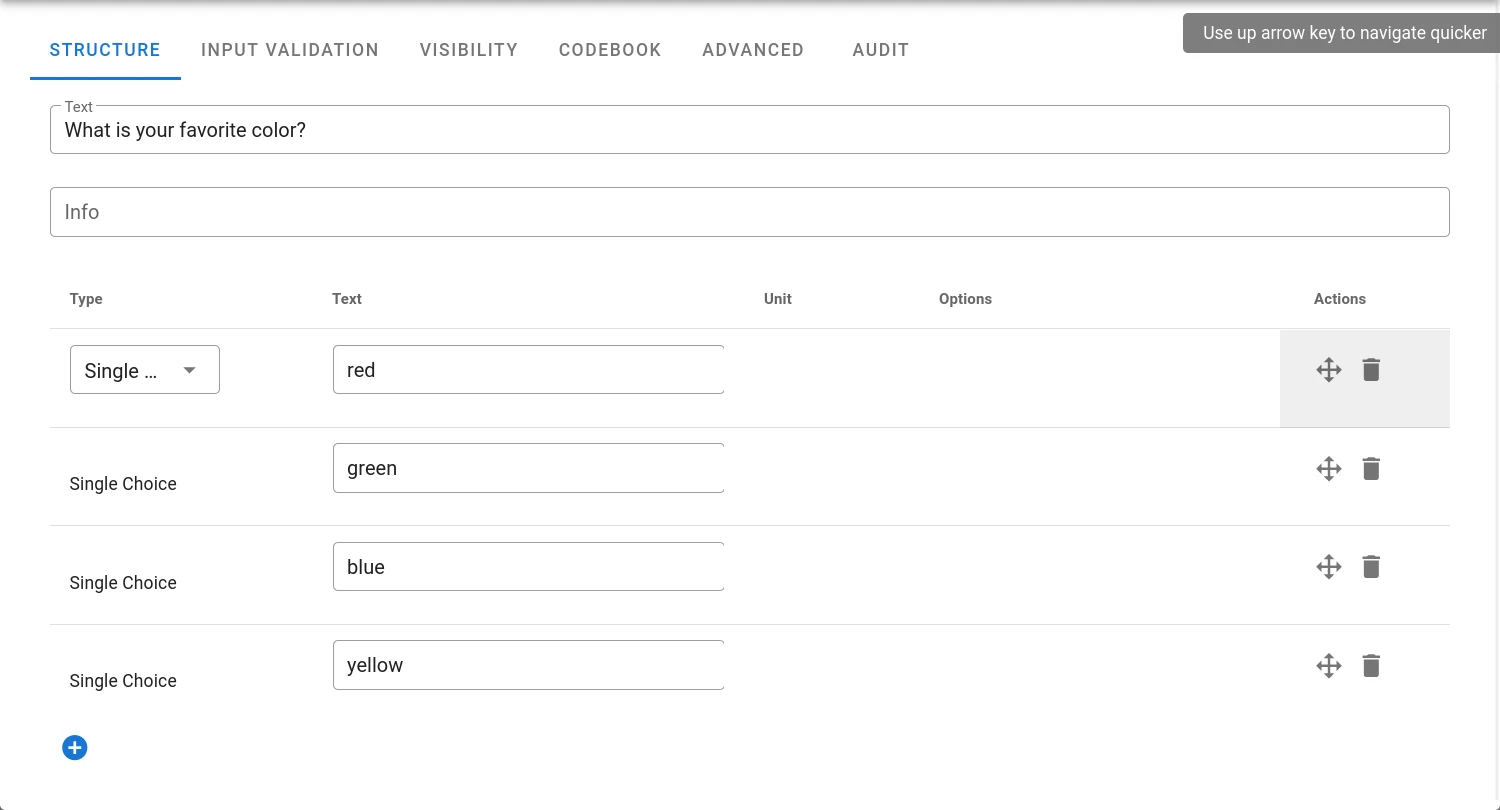
What is your favorite color?
- red
- green
- blue
- yellow
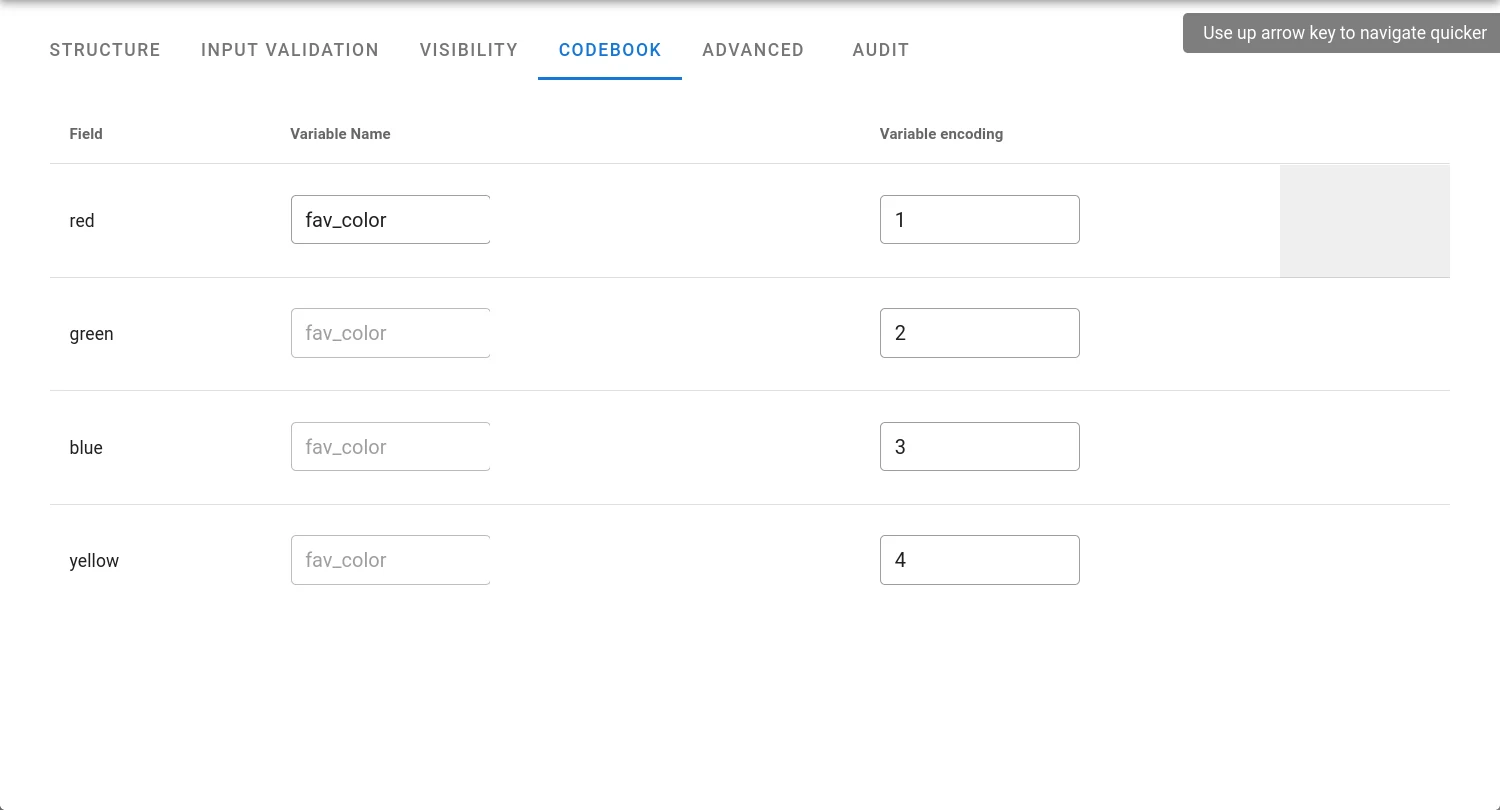
Variable name: fav_color
Coding:
    "red"   : 1
    "green" : 2
    "blue"  : 3
    "yellow": 4
The question would be set up like this:
And the corresponding codebook tab looks like that:
Variables in tables
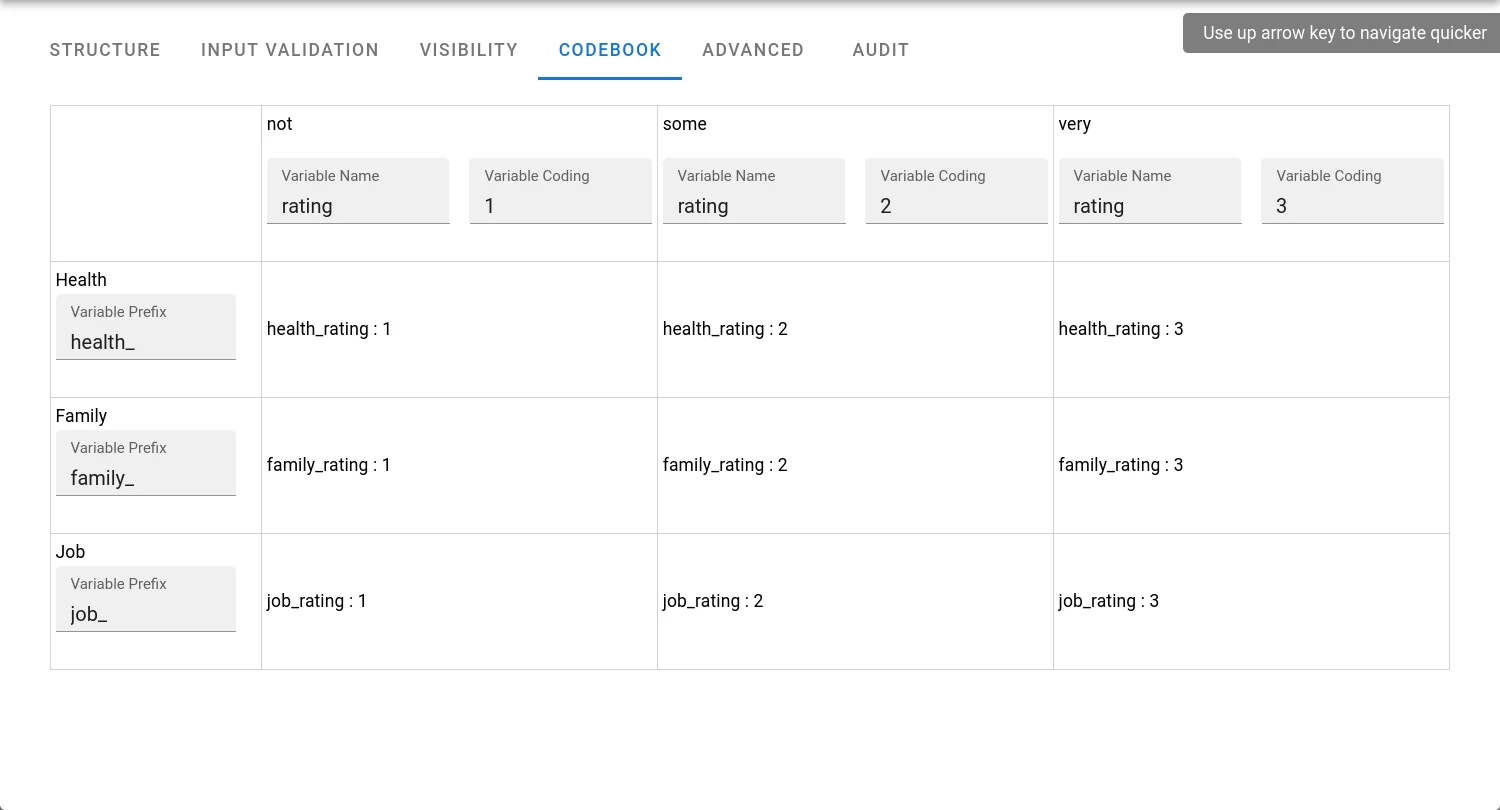
Tables are collections of multiple variables. Accordingly, the same rules as for normal question/variable types apply. However, there needs to be a way to differentiate between the rows. In order to do that, the codebook for tables allows adding row-prefixes so that identification of individual items is easy and clear.
Example: We have a simple table with three checkboxes in the same group:
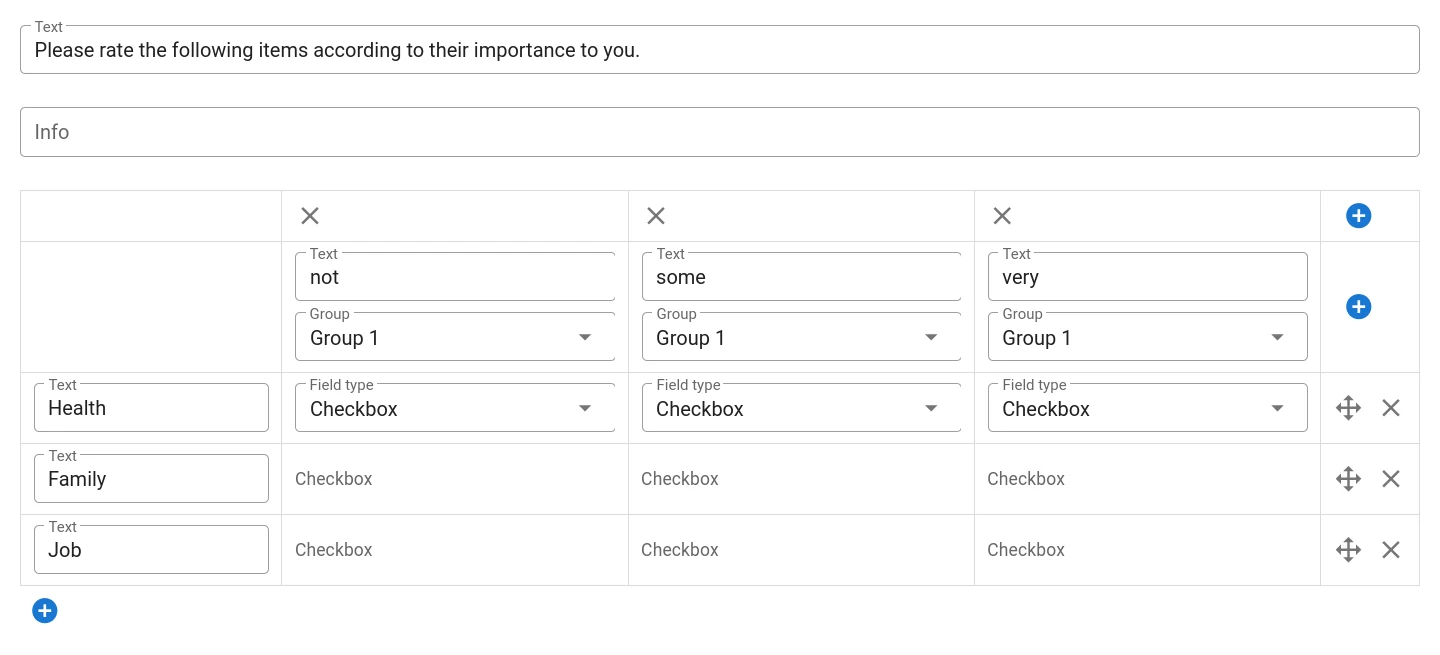
In order to get readable variable names we set the row prefixes health_,
family_ and job_ and use the same column names while using different coding
values as we would for a single choice question:
Advanced
In the tab "Advanced" you can set the question to hidden depending on the context in which the form is filled in (inhouse vs survey)
Audit
In this tab you can see all audit trail entries with respect to changes to structure and content of the question.
Computed fields
Computed fields are a powerful tool for automatic calculations based on data entered into a form. Common applications range from simple computation of mathematical equations (e.g. body mass index or GFR) to complex evaluations of conditions across several fields, forms and visits. The expressions for computed fields are written in MaganaScript.
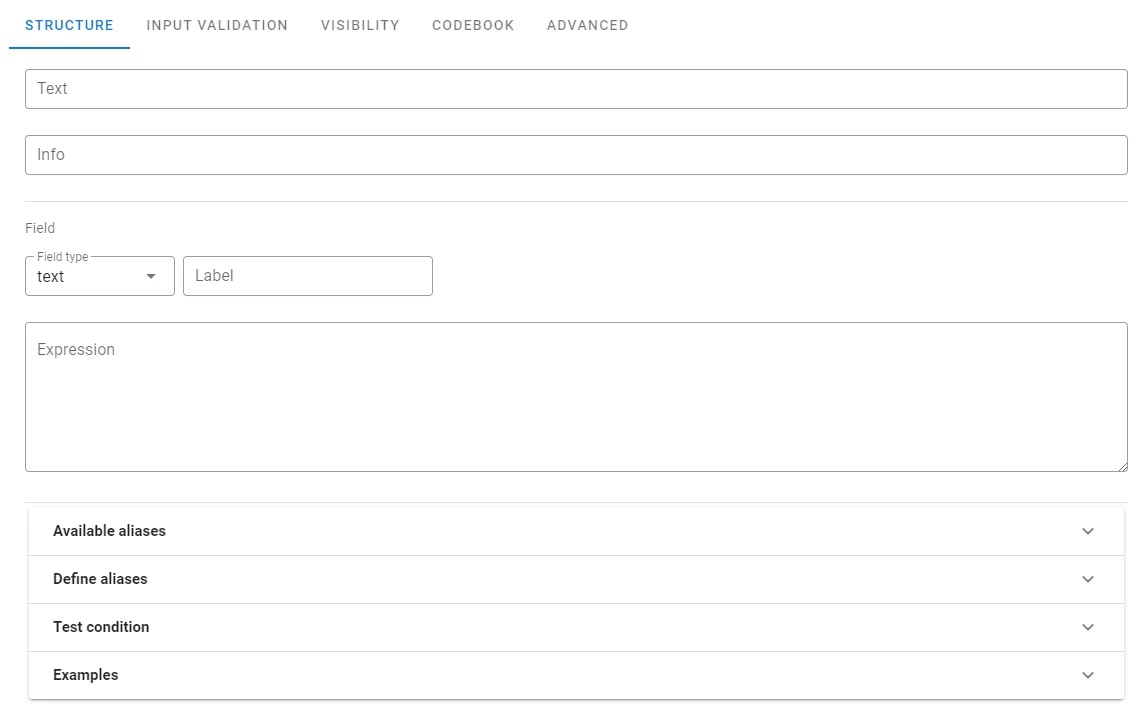
The form designer interface of a computed field contains the following sections:
- Top section in which you write the expression to evaluate
- Available Aliases: A list of aliases that where already defined and can be used in expressions
- Define Aliases: Define new aliases and visit aliases
- Test condition: test the expression on a (test-)participant that is already part of the study
- Examples: Some examples of how to use expressions in computed fields
Questions about Magana Trial Manager?
Try setting up your own eCRF in a free test account, or reach out to our team in Regensburg — we usually reply within one business day.