Introduction
The Magana Trial Manager is a SaaS (software as a service) application provided by MaganaMed GmbH, Regensburg. The main application of the software is the electronic capture and storage (EDC; electronic data capture) of clinical study results. The results are collected in electronic case report forms (eCRFs) and stored in an encrypted database.
The software fulfils the requirements of
- GCP (good clinical practice)
- 21 CFR part 11 (Code of federal regulations, USA)
- GDPR (General data protection regulation)
Modules
Our software is modular – depending on the needs of your studies, the following modules are available:
- Multicenter
- Create multiple study centers/sites and ensure access separation between centers
- Participant Survey
- Allows data collection directly from study participants – on their own devices or at the study site. Can be used for remote visits, ePRO, patient diaries and more.
- Query Management
- Open, answer and close queries in the system
- Visit Scheduler
- Define time windows for visits and automate survey invitations
- Randomization
- Support for list based randomization. Simple randomization, block randomization stratified randomization
- Biosamples
- Support for barcoding, packaging and life cycle management of biosamples in a trial.
- Identity Manager
- Separate system for storing identifying personal data separately from the clinical data.
- API Access
- Connect external software to Magana Trial Manager for data exchange
Account Registration and Management
In order to use Magana Trial Manager, you need a user account. You can register yourself at app.maganatrial.com.
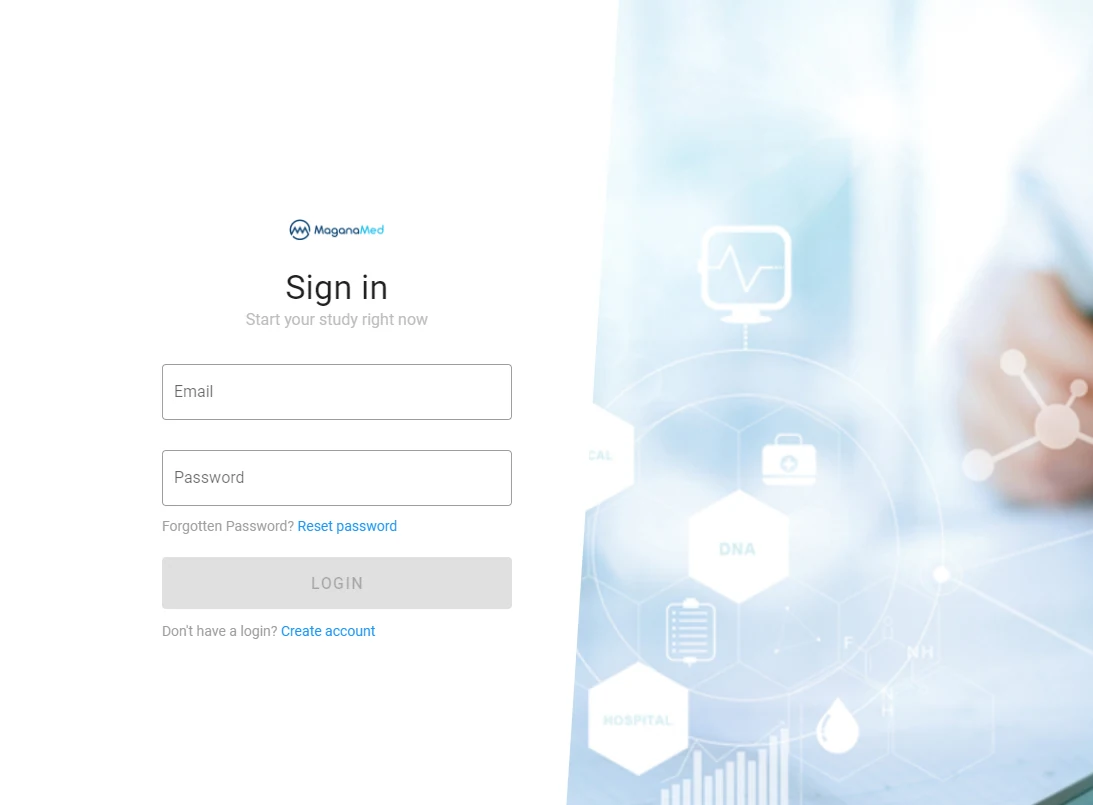
Upon registration, you will be asked to give your first and last name, your email-address (= user name) and set a secure password.
Right after registration, you will be directed to a dialog for creating your first study.
Being Invited to a Study
Another way of getting access to the system is by invitation. In that case, an admin user of an existing study sends you an invitation through the system. In that case, the admin has already entered your email address and you will receive an email inviting you to the study. If this is your first invitation to a study in the MaganaMed system, you will be asked to set your password (you will receive the respective link in an email). If you already have an account because you worked in a different study in our system, your email address and password are valid for all studies you have access to.
Strong Passwords
In order to properly protect your account, it is very important to use a strong password:
- At least twelve characters long (>20 would be ideal)
- Include all of the following in your password:
- upper case letters (A-Z)
- lower case letters (a-z)
- numeric digits (0-9)
- special characters (e.g.
?+=;,!@#$%^&*etc.)
- Your password must not be a common word that can be found in a dictionary
In order to protect your password
- Never give the password to anyone, including IT admins or MaganaMed staff.
- Never use a password for more than one service.
- When changing your password, make sure to use a completely unrelated password. Never just modify your old password.
Good passwords can be hard to remember and type. Therefore, we highly recommend using a good password manager app. There are many good options – ask your local IT-admin for advice. These programs allow storing all of your passwords in one place while protecting them with encryption. They will assist you when entering these passwords in your web browser and can generate strong passwords for you. I.e. you will not have to memorise most of your passwords or type them manually.
At MaganaMed, we do not have access to your password so we cannot tell you what
it is. In case you loose or forget your password, you can reset it yourself
using the reset password link in the login dialog. MaganaMed Employees will
never ask you for your password. If someone does it is most likely a
phishing attack.
For additional security, we strongly recommend that you also activate two-factor authentication for your account.
Logging In and Out
The Magana Trial Manager can be accessed via www.maganatrial.com. To log in, enter your email address and password. The system will display an icon with your initials in the upper right corner of the screen. That makes it easy to immediately spot who is currently logged in if you are working in an environment where multiple people have access to the system.
To log out, click the "door-icon" in the upper right-hand corner of the screen:

For security reasons, we strongly recommend that you lock your local screen/device whenever you are leaving it unattended. After an extended period of inactivity (1 hour) Magana TrialManager will automatically terminate your session for security reasons. However, if you are not planning to continue working in Magana TrialManager, immediately after returning to your device it is advisable to also log out of TrialManager in addition to locking your local screen.
Failed login attempts
Typing good passwords can be error-prone and it is normal that login attempts fail due to typing errors – sometimes a few times in a row. However, multiple failed login attempts for an account may be an indication of a security problem (password guessing or brute-force attack). If our system detects that there were 10 consecutive failed login attempts for an account, it will send you a notification email indicating that these failed logins have happened. If these attempts were made by you, everything is fine. But if you did not try logging in without success, this is a good time, to check, if your password is strong, if you can use password manager to make authentication easier and safer and if you are already using 2-factor authentication to protect your account.
Forgotten passwords
If you ever loose or forget your password, you can recover by clicking on Reset Password in the login screen. Enter your email address and click Send. You will shortly receive an email with a password reset link that will allow you to set an new password.
Changing your Account Settings
To make changes to your user account settings, click on the account icon with your initials in the upper right corner:

Your account is tied to your email address. But you you can change/correct your first and last name and set you preferred GUI language. Please note that The primary interface language is English – a few other options are available for selected parts of the user interface, only. This mostly applies to parts of the system that are used by site personnel.
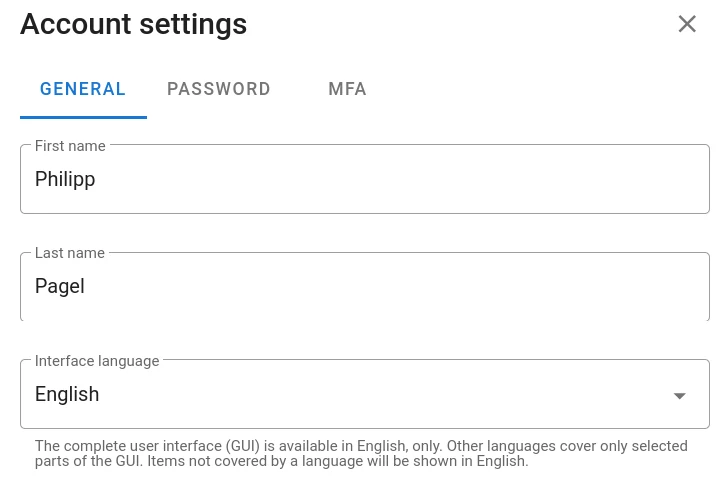
In the Password tab, you can change your password if needed. Remember to adhere to the rules for good passwords described above.
Two-Factor Authentication (2FA)
In the MFA (Multi-Factor-Authentication) tab, you have the option to activate 2FA for your account. This will add an additional layer of security by requiring a second factor (in addition to your password) to log in. Currently, the system supports Time-based one-time passwords (TOTP). In order to use this authentication method you will need a TOTP authenticator app on your smartphone. There are several options available for Android and iOS in the Google-Playstore and Apple App-store, respectively.
After installing the app on your phone, go to the MFA tab in your account settings in Magana Trial Manager and scan the QR code with your authenticator app. If the scan was successful the app will display a numeric code that changes every 20 seconds. Enter that code into the fields in Magana Trial manager and click Enable MFA to finish the 2FA setup.
Now, every time you log into Magana Trial Manager, you will be asked for username, password and the TOTP shown by your authenticator app. Each TOTP is valid for 30 seconds. After that time has elapsed, a new code will be shown. For your convenience, our system will accept the current code as well as the previous one, effectively extending the expiration time to 1 minute and allowing you to use a code that is about to expire. Codes older than that will be rejected.
Audit Trail
Every change in the software is automatically documented in a GCP-compliant audit trail. The audit trail cannot be changed or deleted. An overview of the last entries of the audit trail is displayed in the Audit section (left navigation panel). It is split into general events (like change in visit structure or permissions) and form changes (e.g. adding or changing a question in a form). Additionally, you can access the audit trail for each individual question by entering the form, clicking on the three dots at the right side of the respective question and then choosing "audit trail". You can only view the audit trail, when you have the required permissions.
Legal notice
Access to and use of our services is subject to the agreement you enter into with us. Unless otherwise agreed, our services are provided on the basis of the currently valid terms of use. These can be accessed at https://maganamed.com/terms .
This agreement applies regardless of the way in which our services are provided to you. Violation of these terms may result in the temporary or permanent suspension of your account.
Overview / Structure of the software
The GUI (graphical user interface) of the Magana Trial Manager puts special attention to intuitive operation. The structure of the GUI and various basic concepts are explained below.
Structure of the GUI
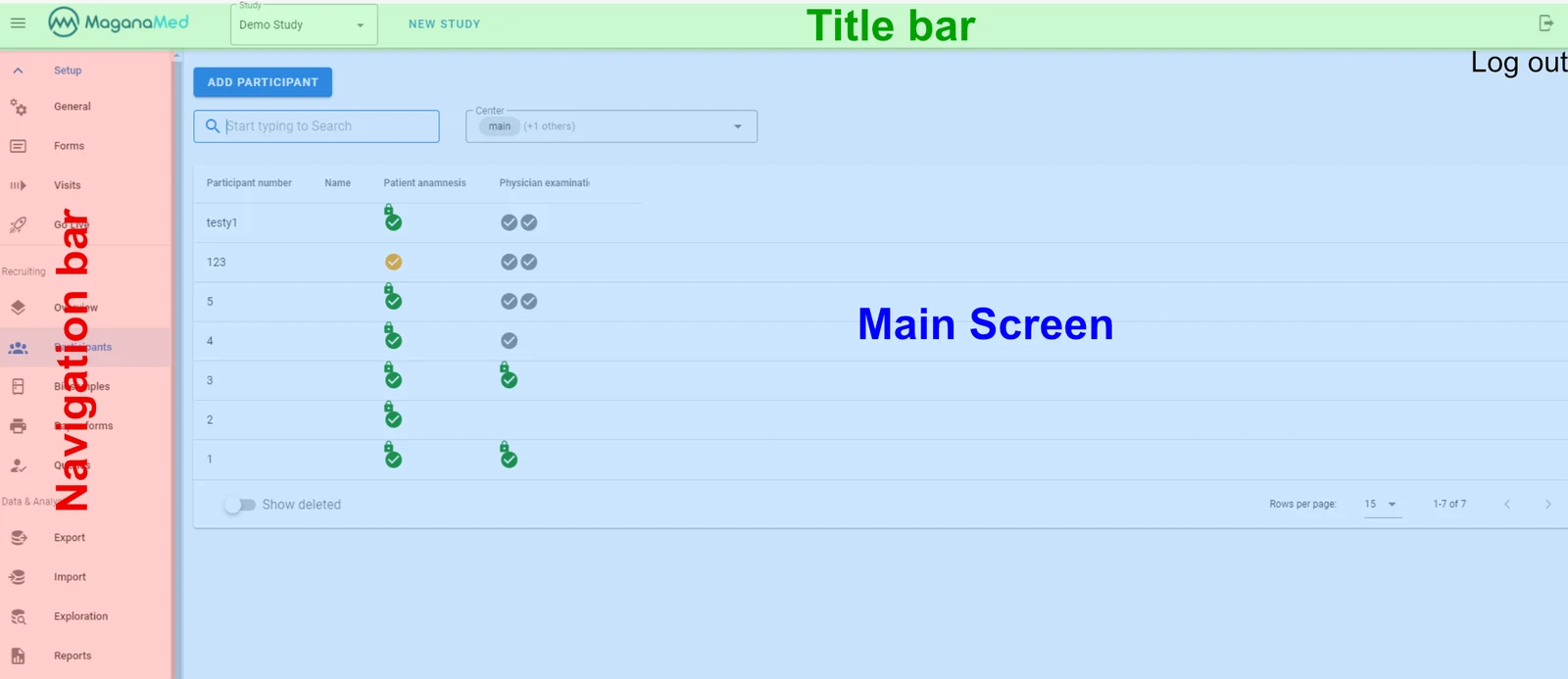
Navigation bar
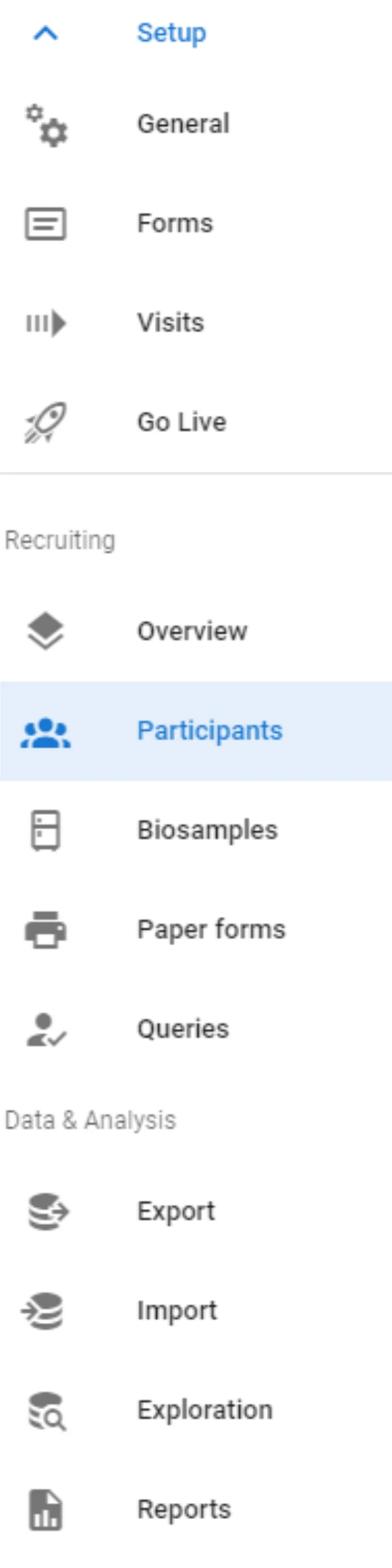
On the left side of the screen you can find the navigation bar with all control elements. The navigation bar can be hidden or shown by clicking on the hamburger icon in the upper left corner of the screen.
Title bar
The title bar always shows the MaganaMed logo or, in the case of branded studies, your logo, name of the current study and the option to create a new study. In the top right corner you will find the symbol to log out of the software.
Main screen
All editing steps take place in the main screen.
Submenus
Some menus have additional sub-menus. These are displayed horizontally as tabs under the title bar.
Phases of the trial
Basically, the Magana Trial Manager does not have a predefined workflow for setting up or conducting your study. Nevertheless, the structure is based on the intuitive life cycle of each study. Therefore, three large sections structure the navigation bar:
Setup
This section contains all settings to set up the entire study (e.g. creation of eforms) as well as the user and center administration. The study can also be switched live or closed here. This menu item is only visible to you if you have the required user permission.
Recruiting
This menu item contains all control elements needed to conduct and control the active study. These include, for example, various overviews of the recruitment status, the processing status of eforms and the query management.
Data Analysis
This menu item contains all tools for working with the received data. This includes, for example, data exploration (to get a first impression of various statistical measures) and data export.
The user role model
Each user must be assigned a role to define the user's permissions. For example, the role "Monitor" can be authorized to open and close queries and to view study data, but cannot create or change study data.
Roles can be created by users with appropriate permissions. Subsequently, each role can be assigned to any number of users. Each user can only have one role per study center at a time.
For security reasons, roles have to be assigned to all users for each center individually. This ensures that permissions are not inherited unintentionally and allows selective user and role management (e.g. exclusive monitors for different centers).
Questions about Magana Trial Manager?
Try setting up your own eCRF in a free test account, or reach out to our team in Regensburg — we usually reply within one business day.