eConsent
Setup
Create the form(s) you want to use in your eConsent visit. In addition to the actual consent form, you may want to add forms containing the participant information, Questions to verify that the participant has understood the information etc. The consent form itself must contain a signature field and in most cases also collect the participant name, date of birth etc.
Personal data entered into the form, the signed form are stored in the Identity-Manger for proper data separation.
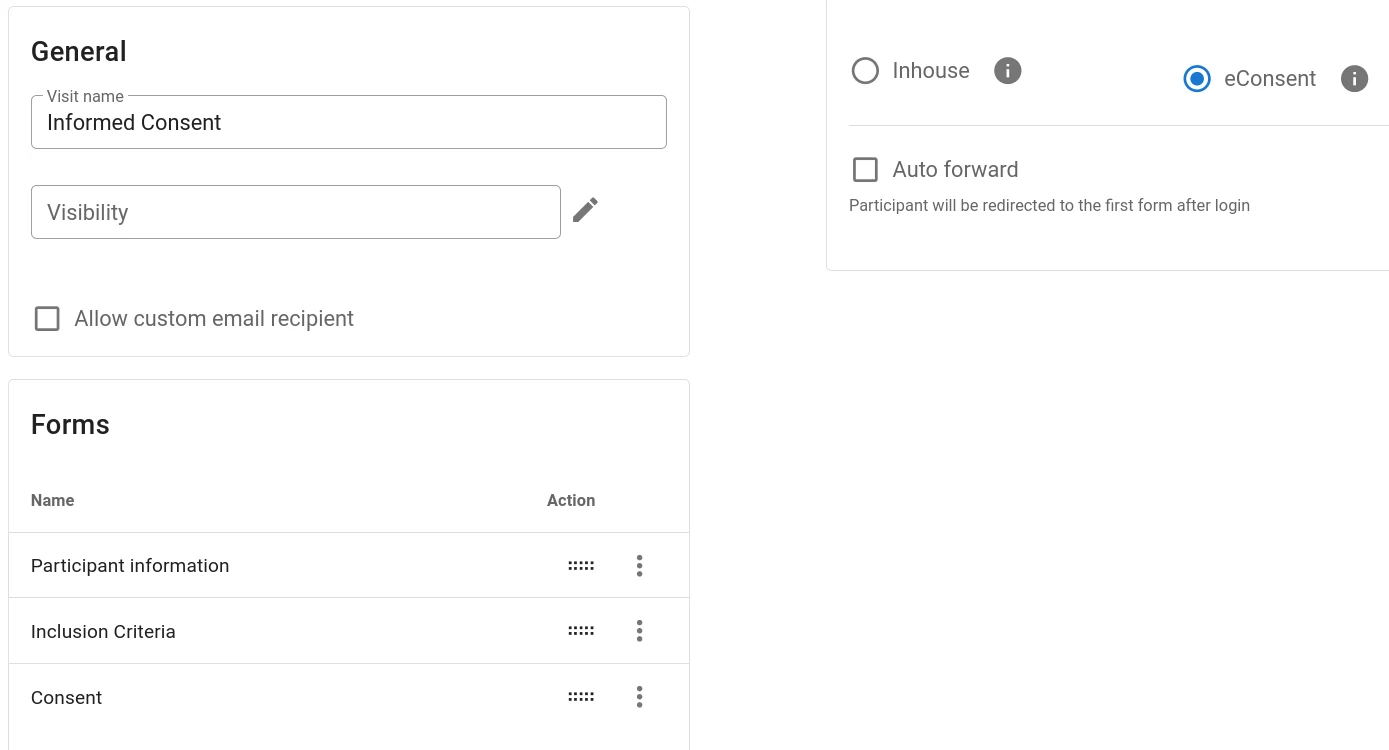
Next, create a visit, add the forms and set the type to eConsent:
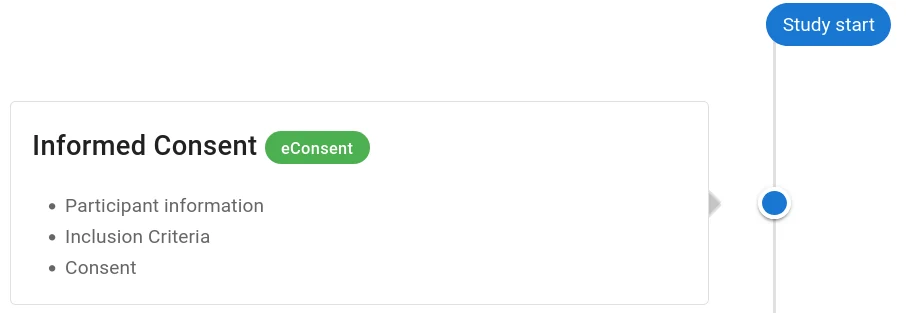
In the visit plan, the visit is now clearly marked as eConsent:
General workflow
- Participant information
The participant is given comprehensive information about the trial. This can be done using documents outside the electronic system or as form(s) in the consent visit. - Q&A
I.e. the participant can ask questions about the study before making a decision.
In person/by phone/secure video call.
Future versions of our eConsent module will include a video call function inside the software to support remote consent. - Participant fills in the forms of the consent visit and signs in the respective field.
- Participant clicks Finish.
- Site user counter-signs the form using the normal Signature function in the context menu of the form/visit.
- A certified copy of the filled and signed consent form is created (PDF) and stored in Identity Manager.
Please note that sites are responsible for verifying the participant's identity at some point in the process.
The specifics of the workflow depend on the setting (on-site or remote) as described in the following sections.
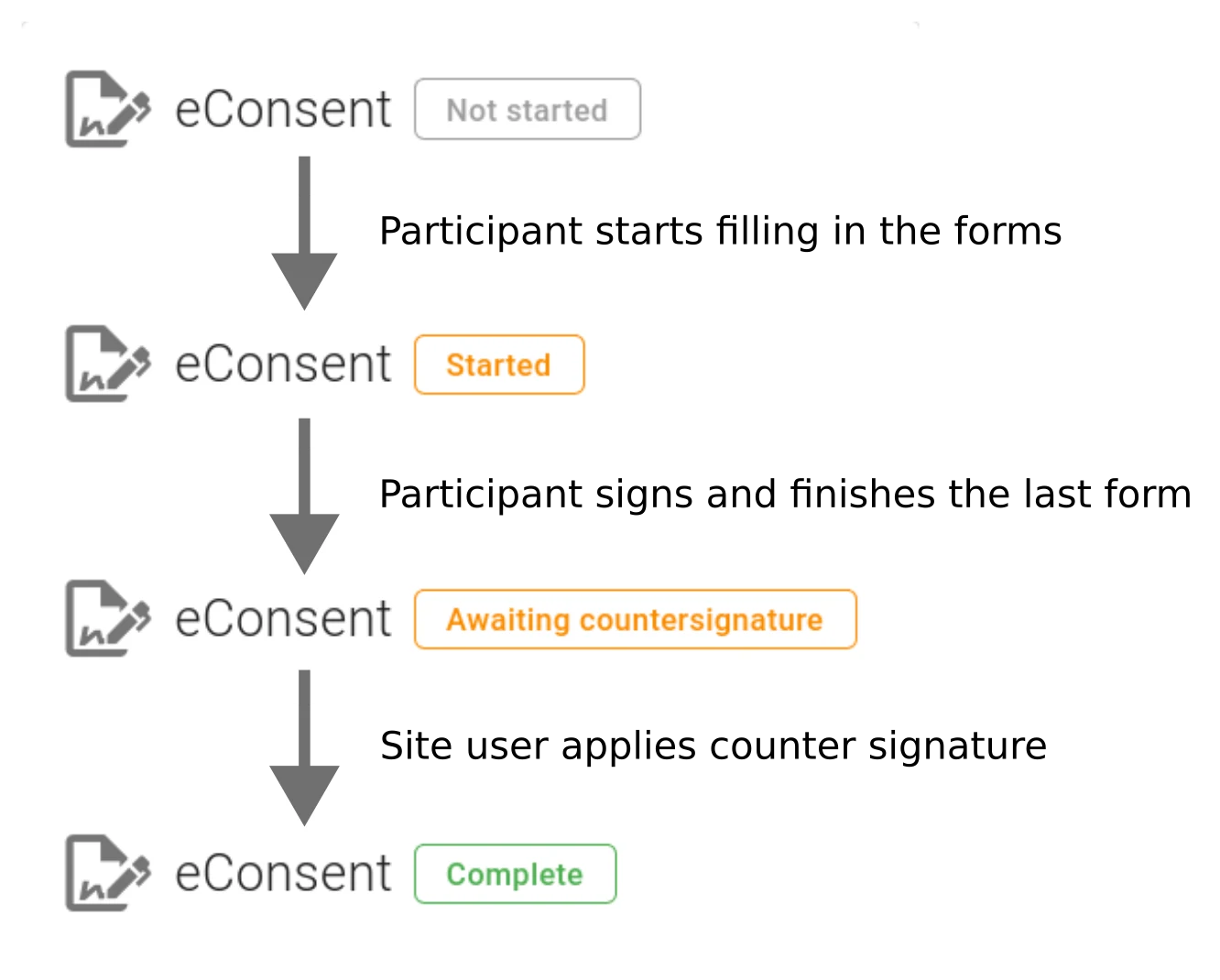
eConsent status
The status of the eConsent process is indicated in the eConsent box of the participant view.
Consent on Site
After the participant was informed about the study, was able to ask questions, and expressed a desire to participate in the study, the site user selects Survey > QR Code in the participant view and chooses the consent visit. The QR code is scanned with a mobile device (tablet or smartphone). After following the ling from the code, the device is handed to the participant who can then fill in and sign the form(s) on the device. For best results, we recommend using a stylus.
After the participant has filled in and signed the consent, the site user signs the entire visit using the normal signing function in the visit's context menu.
Remote Consent
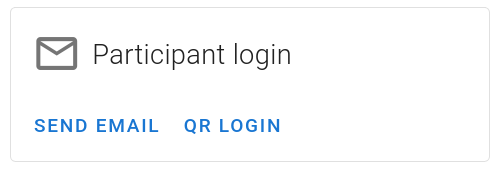
For remote consent, the site user sends the consent invitation to the participant in the same way, as they would send regular survey-invitations (Participant login > Send Email):
The participant then receives an email with a link to the consent form(s). After filling them in and signing, the site user has to counter-sign the visit as usual. As soon as the consent is complete, the certified copy of the consent (PDF) is automatically sent to the participants email address and also stored in Identity Manager.
Consent in Public Surveys
You can also have a consent visit in a public survey, i.e. people interested in your study, self-register in the system. In such a setting, we recommend starting with a screening visit that established that prospective participants are eligible for participation and place the consent visit after that screening visit. You can then follow the workflow for remote consent or allow directly progressing to consent.
Regulatory Aspects
Electronic signature requirements are inconsistent across legislations, even within the EU. So make sure to consult with your regulatory experts to decide if eConsent or the specific implementation of the workflow and signature in our software fulfill the local requirements for your specific project.
Questions about Magana Trial Manager?
Try setting up your own eCRF in a free test account, or reach out to our team in Regensburg — we usually reply within one business day.