Query Management
In the query management process missing and inconsistent data can be verified by double checking with the respective user and/or participant. The whole process can be executed within the software. So, no additional third party software is needed and the communication between the different parties (e.g. monitor and study nurse) is documented automatically and compliant to GCP in the audit trail.
Query overview
You can access an overview over all queries by entering recruiting > queries.
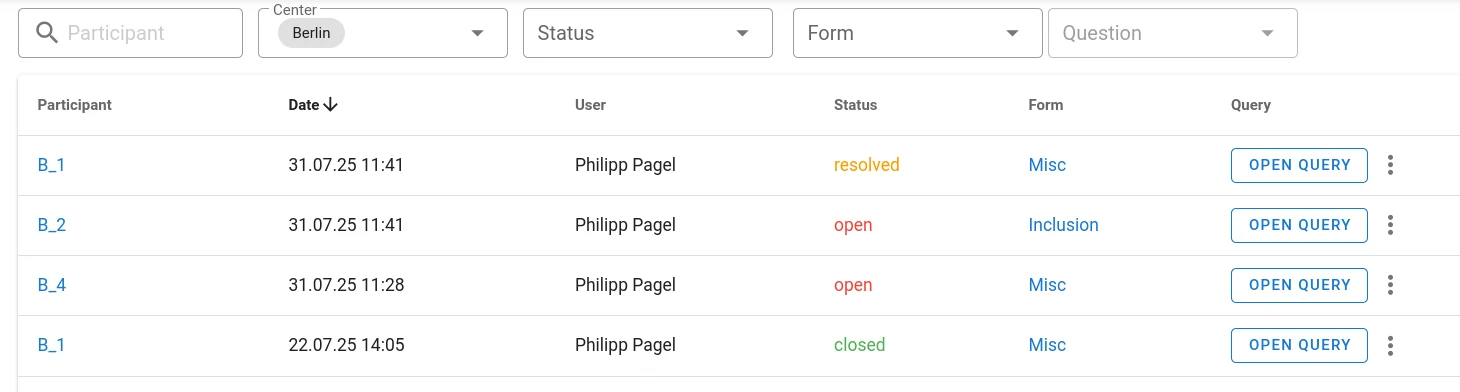
The query list can be filtered by multiple criteria including participant ID, center, query status, form, question.
The Query list can be sorted by any of the following criteria by clicking on the respective header. Clicking again will reverse the sorting order.
- Participant ID
- Date
- User (who opened the query) – typically a monitor
- Query status
- Form name
You can open and work on the query by clicking Open query. Queries can have following states:
- Open
- A pending query that has been opened but not answered, yet. Indicator: red speech balloon
- Resolved
- Query which has been answered by a site-user but hasn't been closed by the responsible person (e.g. monitor), yet. Indicator: orange speech balloon
- Closed
- The query has been closed by a user with appropriate permissions thus accepting the resolution given by the site user. Indicator: green speech balloon
Clicking on the participant ID will directly take you to the participant view for the respective patient. Clicking on the form name takes you directly into the form of the participant containing the query.
The system will remember filter and sorting settings as long as you just click on items in the view and return to the overview using the Back button of your browser. Opening other menus in the system and returning to the query list bay clicking Queries in the menu will reset all filters.
Your role in the study and the permissions associated with it determine what kind of access you have to queries: Queries can only be opened and closed by roles that have the query permission. In order to answer/resolve a query, you need the edit permission. Anyone with view permission can read queries. Users only have access to queries in their own center(s).
Opening a query
Queries can be opened directly in the respective form:
- Open the context menu (three dots) of the question you want to raise a query for.
- Select Queries
- Explain the problem – i.e. content of your query.
- Click save
By default, you will be automatically added to the list of people receiving email-notifications when the query changes status (Collaborators). In order to add other people, select them from the drop-down menu.
An open query is indicated by a red speech bubble at the right side of the respective question as well as in the participant view.
More than one query can be raised on a data point. In order to add a new query instead of editing an existing query, select + New Query. This will create a separate query that can be edited in its own tab.
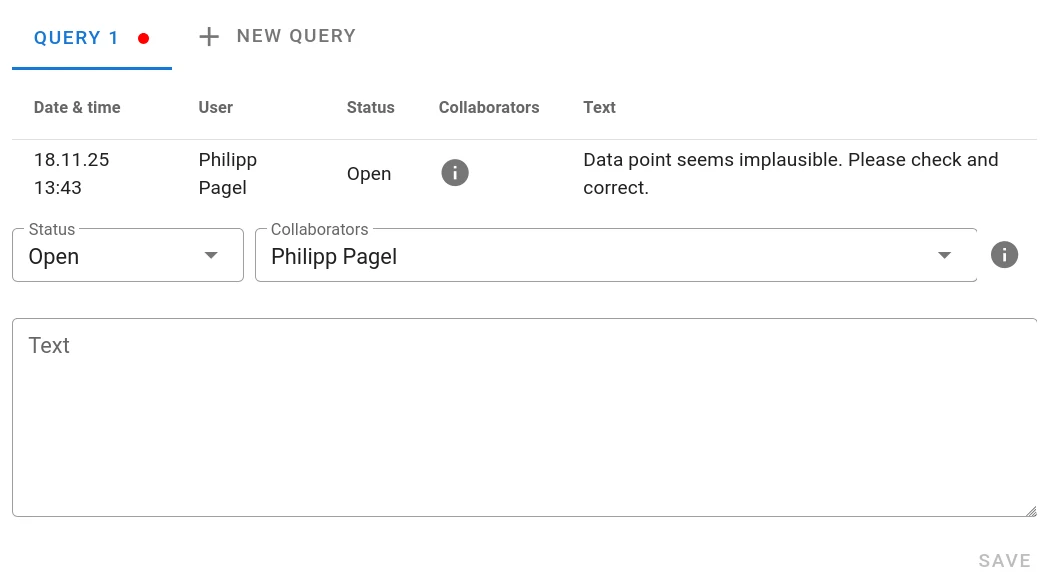
Answering/Resolving a query
To resolve a query, first correct the data, if appropriate, then open the query from the participant form or query overview.
- Change the status to resolved
- Explain your resolution in the text box
- Click Save
Closing a query
To close a query, open it from the participant form or query overview.
- Review the answer text added during resolution as well as the (corrected) data.
- Change the status to resolved
- Comment in the text box. (E.g. "OK")
- Click Save
Questions about Magana Trial Manager?
Try setting up your own eCRF in a free test account, or reach out to our team in Regensburg — we usually reply within one business day.